 CHICKENBANANALAB

When you use a computer or smartphone, you often come across the term 'cache'. Phrases like 'clear your cache' or 'cache memory is full' are familiar, aren't they? But if someone asks, 'What exactly is cache?', it can often be hard to give a clear answer. In this article, without making it too complicated, we'll explain what cache is and why it's important, making it easy to understand in the context of your digital life.
Why Do We Need Cache? Understanding the Core Concept
First and foremost, it's easiest to understand cache as a space that temporarily stores frequently used data. You've probably experienced how much faster your favorite websites or frequently used apps load when you open them again, compared to the first time. This is thanks to cache. It's similar to not building a new house every time you visit your hometown, but rather quickly grabbing necessary items from a pre-built temporary storage shed.
The Principle of Cache: How Does It Work?
Cache makes copies of necessary data in a nearby location so it can be used immediately. Instead of going to the distant original storage (e.g., web server, hard drive) every time data is needed, it's retrieved directly from the faster, closer cache space. This significantly reduces data access time, leading to an overall increase in processing speed.
For example, when you access a website, your web browser stores page components like images and scripts in its cache. The next time you visit the same website, if the cached data is available, the page can load much faster without needing to download everything from the server again.
Different Types of Cache Around Us
Cache is integrated into many aspects of our daily lives. While there are various types and their operations differ slightly, the basic principle remains the same. Here are a few representative types of cache:
- CPU Cache (L1, L2, L3 Cache): Even the CPU, the brain of your computer, has a cache. It's much faster than main memory (RAM) but has a much smaller capacity. The CPU stores frequently used data here to maximize calculation speed. It's similar to keeping frequently used writing tools on your desk. It's categorized into levels like L1, L2, and L3, with L1 being the fastest and smallest in capacity.
- Web Browser Cache: This is one of the most familiar types of cache. Web browsers like Chrome, Edge, and Safari store images, HTML files, CSS, and JavaScript from websites you've visited. Thanks to this, loading speeds are faster, and data usage is reduced when you revisit the same site.
- DNS Cache: DNS servers, which translate internet addresses (domain names) into IP addresses, also use cache. By storing converted information in the cache once, you don't need to ask the DNS server again when connecting to the same address later, thereby shortening connection times.
- App Cache: Apps installed on smartphones and PCs also use their own cache. This helps reduce app loading times or temporarily stores frequently used data to maintain a smooth app execution environment.
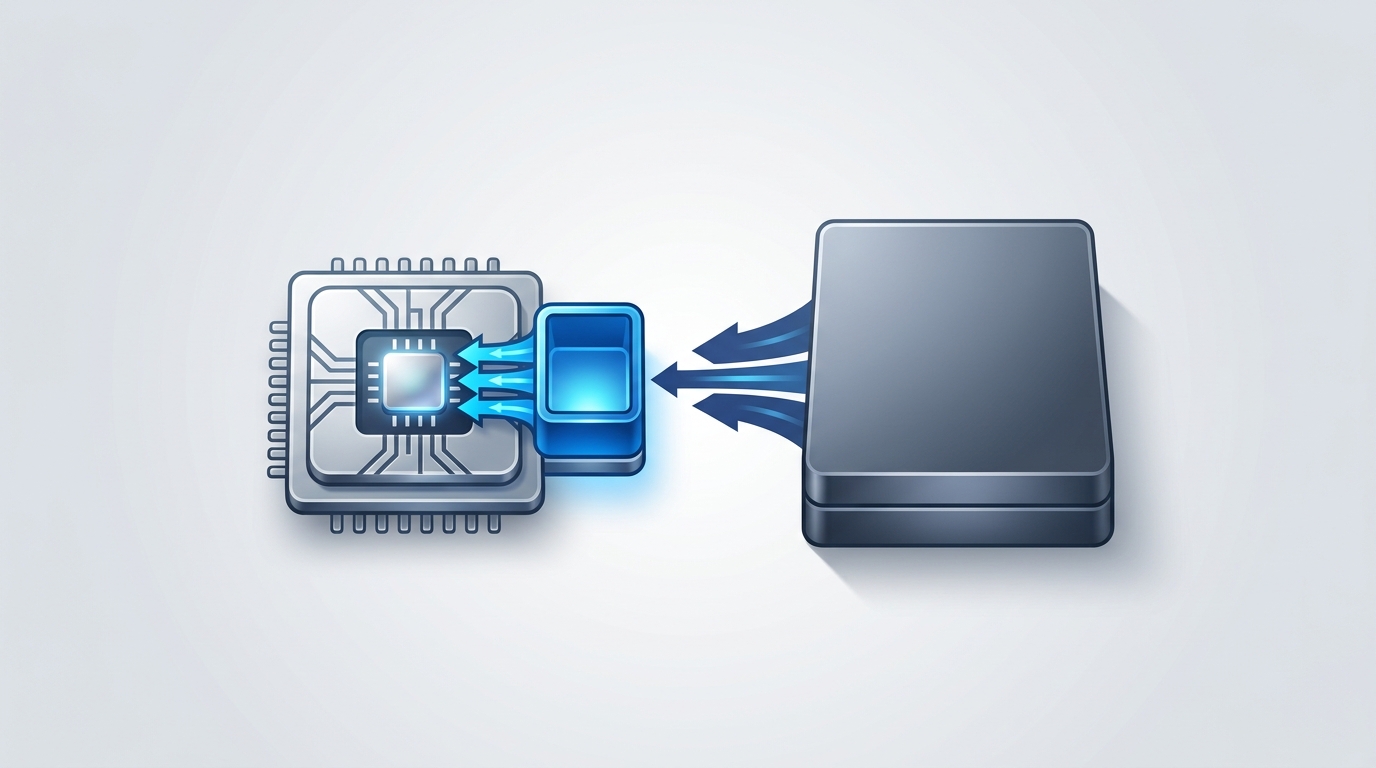
Conceptual diagram of cache memory located close to the CPU, aiding faster data processing
Is Cache Always Good? Points to Be Aware Of
While cache undoubtedly greatly improves the digital experience, it can sometimes cause issues. The most common problem is errors caused by outdated cache data.
- When new information isn't reflected: Sometimes, even after a website has been updated, old cached data is displayed, or an app's latest features aren't applied. In such cases, clearing the cache often resolves the issue.
- Occupying storage space: As cache data accumulates, it can take up a considerable amount of storage space on your smartphone or computer. If you're running low on space, it's a good idea to clear the cache occasionally.
- Risk of personal information leakage: If cache from a website you logged into remains on a public computer, the next user might be able to see your login information. If you're in an environment where sensitive information is handled, it's safer to get into the habit of clearing the cache after use.
Effective Cache Management Tips
Most cache is managed automatically, but clearing it manually can be helpful when the aforementioned problems occur. You can usually find 'Clear browsing data' or 'Clear app cache' functions in the settings menus of your web browser or smartphone.
- Clearing web browser cache: In your browser settings, go to 'Privacy and security' or 'Browsing history,' select 'Cached images and files,' and delete them. You can also quickly access this function using the shortcut Ctrl+Shift+Del (Windows) or Command+Shift+Del (Mac).
- Clearing smartphone app cache: On Android phones, you can clear the cache via 'Settings > Apps & notifications > Select the app > Storage & cache > Clear cache'. For iPhones, direct app cache clearing features are rare, so deleting and reinstalling the app is typically how cache is cleared.
- Clearing DNS cache (DNS Flush): On Windows, you can open the Command Prompt (CMD) and type
ipconfig /flushdnsto clear the DNS cache. This helps remove old or corrupted DNS entries, ensuring your system retrieves the latest information.
So, does the word 'cache' feel a bit more familiar now? Cache is a hidden helper that enhances the performance of our digital devices, creating a faster and more pleasant environment. Don't overthink it; properly managing your cache when needed can make your digital life much more enjoyable. We hope the information about cache shared today has helped answer your questions.
댓글
0 개첫 댓글을 남겨보세요.