 CHICKENBANANALAB
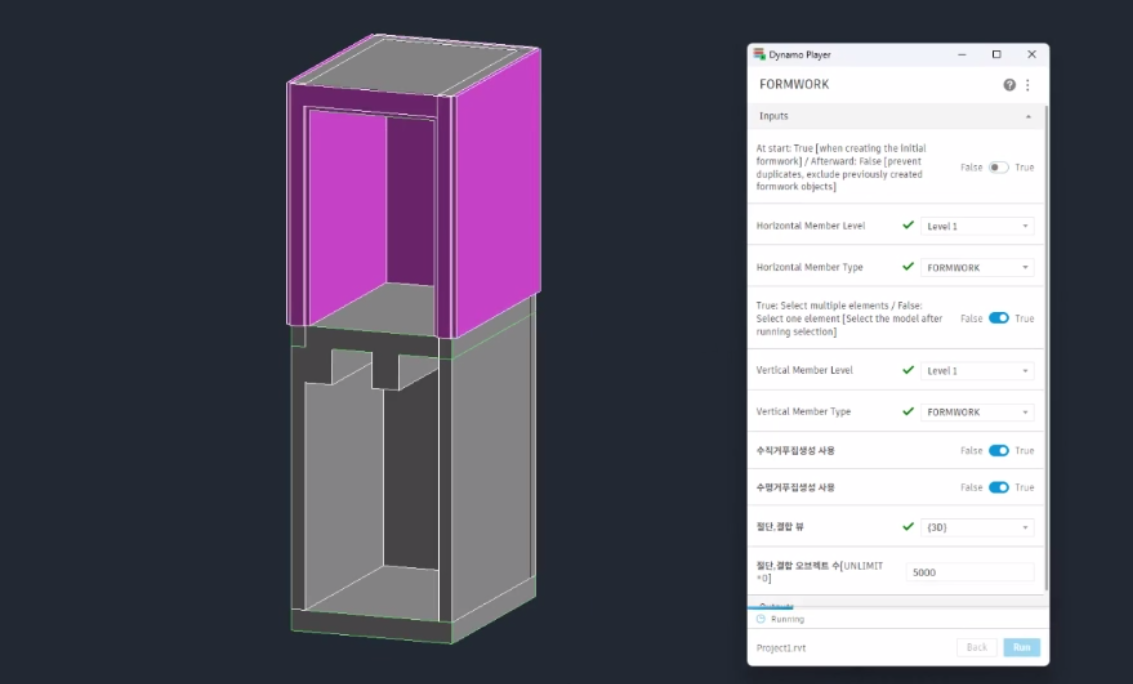
Hello! This is ChickenBanana Lab. In this post, I will guide you step-by-step on how to automatically generate formwork elements using Autodesk Revit 2026 and Dynamo 3.6.0, as introduced in the video.
Experience a much faster and more efficient workflow by handling repetitive manual formwork modeling with the FORMWORK.dyn Dynamo Player file!
Video link : https://youtu.be/E59_HT8UJHs
💻 Software Environment (Versions)
This tutorial was created based on the following versions:
Autodesk Revit 2026
Dynamo 3.6.0
🛠️ Step 1. Preparation (Revit Settings)
Before running the Dynamo file, you must first create vertical and horizontal formwork types in Revit.
Create Vertical Formwork: Create a vertical formwork type using the Wall element.
Create Horizontal Formwork: Create a horizontal formwork type using the Floor element.
⚠️ Crucial Note: The type names for both vertical and horizontal formwork must be identical and written in uppercase as
FORMWORK. If the names are different, the script may not operate properly.
📂 Step 2. Dynamo Player Folder Setup
Go to the [Manage] tab at the top of Revit and launch [Dynamo Player].
Click the [Open in Explorer] icon at the top of the Dynamo Player window.
Download the
FORMWORK.dynfile from the link below and copy it into the opened folder.Return to the Dynamo Player window and click on
FORMWORK.dynfrom the list.
🚀 Step 3. Running and Configuring the Dynamo File
Set the following input values in the Dynamo Player.
⚙️ 'At start' Setting
First Run: Set to
True.Subsequent Runs: You must change it to
Falseto prevent duplicate formwork from being created.
📏 'Level' Setting
Select the same Level as the target objects where the vertical/horizontal formwork will be generated. If the level is different, it may be created in the wrong location.
🧱 'Formwork Type' Setting
Select the
FORMWORKtypes you created earlier for both vertical and horizontal formwork, respectively.
✨ Step 4. Automatically Generating Formwork
Once all settings are complete, click the [Run] button.
In the Revit view, drag your mouse to select the target objects where you want to create formwork.
After selection is complete, click the [Finish] button at the top left.
Verify that the formwork elements have been automatically generated matching the target objects!
📌 Notes & Precautions
For consecutive runs (2nd time and beyond): As mentioned earlier, change the
At startvalue toFalseto prevent duplication, then repeat the process: [Run] -> Select Objects -> [Finish].Manual Modeling: Depending on the modeling conditions or complexity, formwork may not be generated automatically in certain areas. This is rare, so simply checking for missing parts and modeling them manually will make it perfect.
💡 Tip: Since level or object settings can vary from project to project, we highly recommend testing this on a sample model first before applying it to an actual project.
첨부된 프로그램 파일은 압축 해제 후 사용해주세요.
댓글
0 개첫 댓글을 남겨보세요.